


















Gmail: Send and reply from a shared inbox address
A shared inbox is an address your team answers together, like build@ or info@. We set it up as a Google Group: every email to it is kept in the group, so anyone you add later sees the whole history. To reply as the shared address instead of your own, add it to Gmail once with the steps below. It takes two minutes.
Requirements
| You need | Notes |
|---|---|
| Membership in the shared inbox | We set this up. If you don’t get its emails yet, email help@teamwildcard.ca with the address and who should see it. |
| The shared address | For example build@yourbusiness.ca. |
| Gmail on a computer | These settings are only on the website, not in the phone app. Once added, the address also works on your phone. |
Steps
-
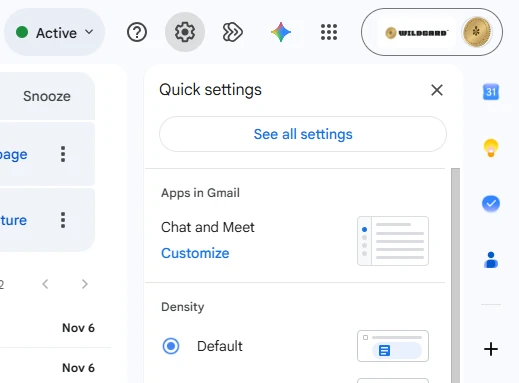
Open Gmail's Accounts settings and sign in with your work account if asked. Or, in Gmail, select the gear at the top right, then See all settings, then the Accounts tab.
Picture: Gmail -
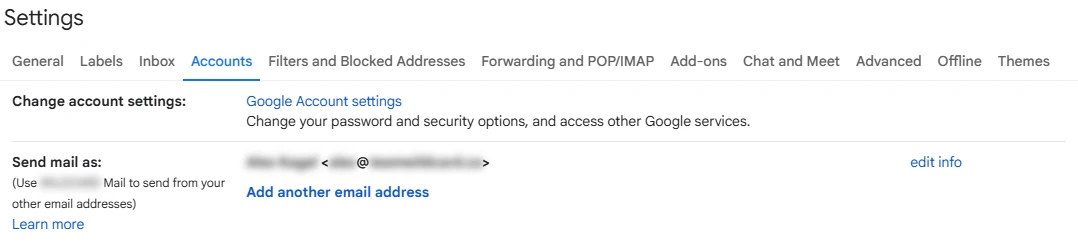
Next to Send mail as, select Add another email address. A small window opens.
Picture: Gmail -
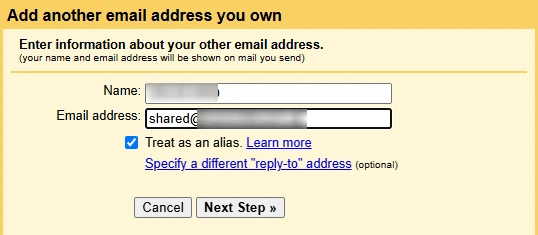
Type your business name in Name, for example Homes By Imagine. This is what people see in their inbox. Type the shared address in Email address. Leave Treat as an alias ticked, then select Next Step.
Picture: Gmail -
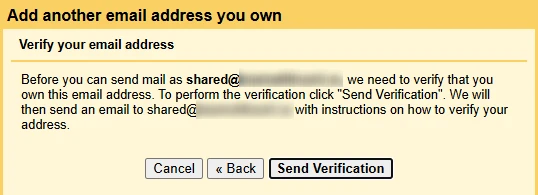
Select Send Verification. Google emails a confirmation link to the shared address, and the window says the email was sent. You can close it.
Picture: Gmail -
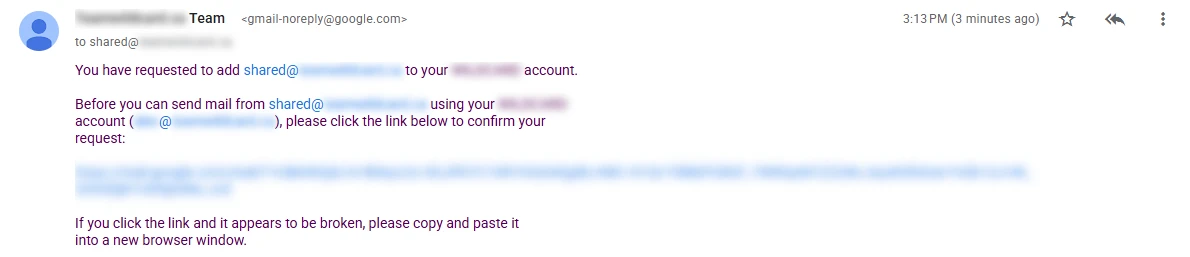
The confirmation email lands in the shared inbox within a minute. If it isn't in your own inbox, go to groups.google.com, select the shared inbox, and open it there. Select the long link in the email to confirm.
Picture: Google Groups -
Back on the Accounts tab, the shared address now shows under Send mail as. Under When replying to a message, select Reply from the same address the message was sent to. Gmail saves it on its own.

Picture: Gmail
Check it worked
- Open an email that was sent to the shared address and select Reply all.
- The From line shows the shared address, not your own.
How to use it day to day
| You want to | Do this |
|---|---|
| Answer an email sent to the shared address | Select Reply all. Your answer goes to the sender and is saved in the shared inbox, so your team can see it. A plain Reply reaches the sender but skips the shared inbox. |
| Start a new email as the shared address | In a new email, select the From line and choose the shared address. Add the shared address in Cc so the email is saved in the shared inbox too. |
| Answer personally | Change the From line to your own address before you send. |
Source: Gmail Help: Send emails from a different address or alias.