
















Connect Microsoft 365, Google or your computers
Most cards need one connection before they can protect anything. Cards for your people (Identity Monitor, Email Security, Phishing Training, Email Signatures, Unified Backups, Password Manager) need your Microsoft 365 or Google Workspace. Cards for your machines (Workstation Defender, Patch Management, Network) need your computers. Domain Security needs access where your domain lives, which has its own page.
One connection, many cards. Connect Microsoft 365 or Google once and every card that needs it can start.
Before you start
- The sign-in of an administrator on your Microsoft 365 or Google Workspace. The connection has to be approved by an admin.
- About one minute.
Steps
-
In your portal, open Settings, then Connections, and select Connect next to Microsoft or Google. The People page has the same button, named Connect Microsoft 365 or Connect Google Workspace. Right after you activate a card that needs this, the button reads Next: Connect Microsoft 365. All of them open the same page, onboard.teamwildcard.ca.
-
Read what connecting does. It lets us read your user list and licence counts (so your bill matches the seats you use), confirm we are connected to the right organization, and keep a documented emergency administrator account so support stays available when your own admin cannot be reached. We do not ask for access to email, files or calendars. Select Microsoft 365 or Google Workspace.
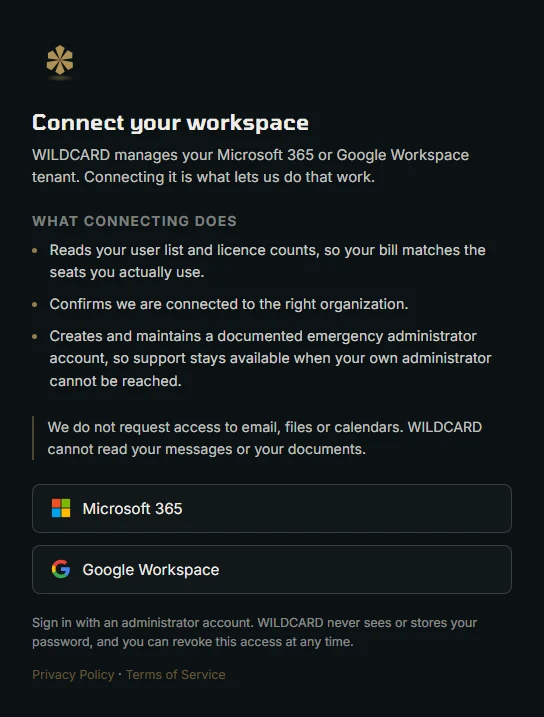
Picture: onboard.teamwildcard.ca -
Sign in with your administrator account and approve the request. Microsoft or Google shows the sign-in, and the password never passes through us. You can revoke this access at any time from your Microsoft or Google admin settings.
What happens next
- Your Connections page shows Connected. Your team appears on the People page after the first sync.
- Cards you hold that were waiting on this connection start working.
Your computers
Your computers are connected by a small agent we install on each one. There is no self-serve installer yet. In Settings, Connections, select Connect next to Your computers. The portal says We’ll set this up with you: email [email protected] and say you want help installing on your computers. Copy email address puts the address on your clipboard. Your computers appear in the portal after their first check-in.
Related
- Give us access to your domain, the third connection
- Activate a card: fix it once or keep it managed
- Identity Monitor, Email Security and Workstation Defender, cards that need these connections