


















Get your DKIM key from Bluehost
DKIM is a signature on your email that proves a message really came from you. This page gets the key from Bluehost and puts it where your DNS lives.
Before you start
- An admin sign-in for your Bluehost Email Control Panel (Bluehost Professional Email).
- The sign-in for the company that runs your DNS. This example uses Cloudflare.
- About ten minutes.
Steps
-
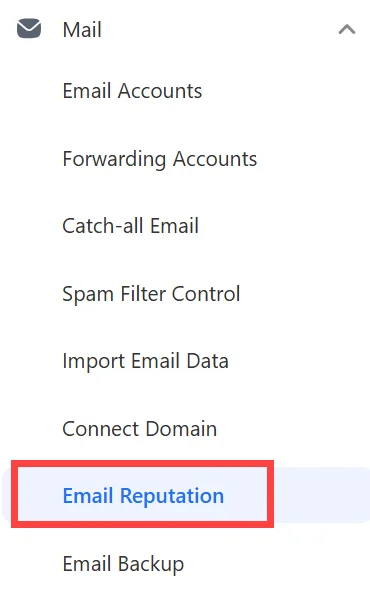
Sign in to the Email Control Panel as an admin of your email accounts. In the left menu, select Email Reputation.
Picture: Bluehost Help -
Next to Add DKIM record, expand Add.

Picture: Bluehost Help -
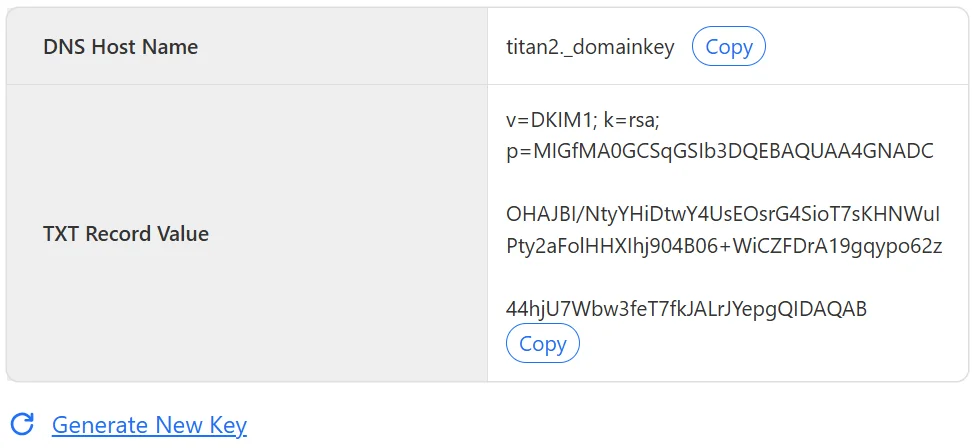
Copy the DNS Host Name and the TXT Record Value.
Picture: Bluehost Help -
Open the DNS records page for your domain at the company that runs your DNS. This example uses Cloudflare: select DNS records, then Add record. Set Type to TXT. For Name, enter the DNS Host Name you copied. For Content, paste the TXT Record Value. Select Save.
-
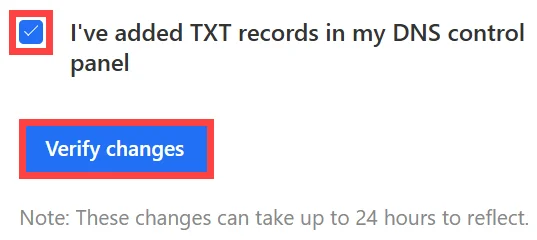
Go back to Email Reputation and expand Add again. Tick the box that says you have added the TXT records, then select Verify changes.
Picture: Bluehost Help
When it works, DKIM Record shows VERIFIED at the top of the Email Reputation page. Bluehost says DNS changes can take 24 to 48 hours, so if it does not verify at once, try again later.
If your email runs on a Bluehost hosting plan
Bluehost has a separate path. In your hosting plan’s cPanel, open Email Deliverability, select Manage next to your domain, and copy the Name and Value from the suggested DKIM (TXT) record. Do not select Install the Suggested Record. Publish that name and value as a TXT record in your DNS, the same way as step 4.
Check it worked
Run your free scan at teamwildcard.ca. DKIM should show Pass.
Related
- SPF, DKIM and DMARC, done yourself, the whole set of three records
- Move your DNS to Cloudflare
- Get your DKIM key from DreamHost
- Get your DKIM key from Zoho Mail