


















Add a shared mailbox to your folder list
A shared mailbox is an address the whole team answers, like billing@ or info@. When we give you access, it shows up on its own in the new Outlook for Windows, under your own mail. Outlook on the web does not add it for you, so add it yourself with the steps below. It takes a minute and you only do it once.
Requirements
| You need | Notes |
|---|---|
| Access to the shared mailbox | We set this up. If you don’t have it yet, email [email protected] with the mailbox address and who should see it. |
| The mailbox address | For example [email protected]. |
| Your own licensed mailbox | You open a shared mailbox from inside your own. A shared mailbox has no sign-in of its own. |
Steps
-
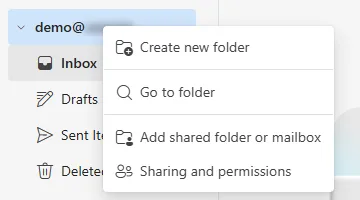
Go to outlook.office.com and sign in with your work account. In the folder list on the left, right-click your own email address, the line above your Inbox. Select Add shared folder or mailbox.
Picture: Outlook on the web -
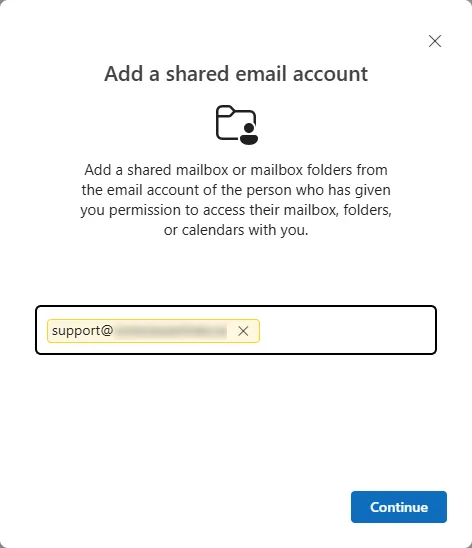
An Add a shared email account window opens. Type the shared mailbox address. Select the address when it appears under the box, then select Continue.
Picture: Outlook on the web -
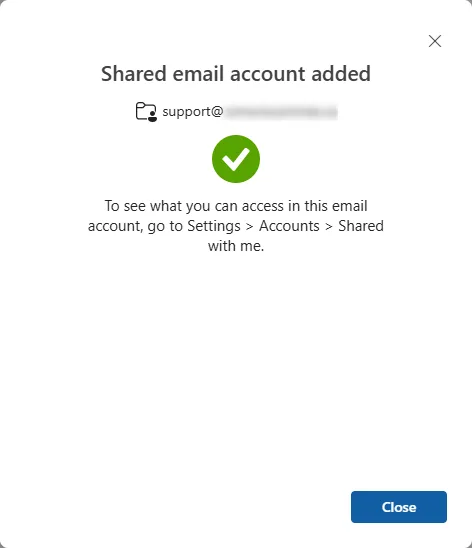
Outlook says Shared email account added. Select Close, then close Settings with the X at the top right.
Picture: Outlook on the web -
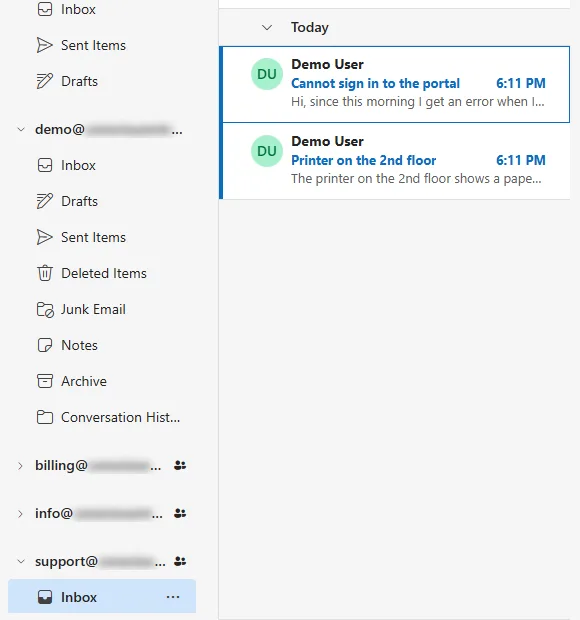
The shared mailbox is now at the bottom of your folder list. Select the arrow next to it to open its folders, then select its Inbox.
Picture: Outlook on the web
What happens next
- The mailbox stays in your list every time you open Outlook. Nothing to repeat.
- Need more than one? Do the steps again for each address.
- “Can’t add this account? You don’t have permission” means one of two things. Either the mailbox is already in your list (look at the bottom of it), or your access is not set up yet. New access can take up to an hour to work. If it still fails after that, email [email protected].
- To take it off your list: Settings, Account, Shared with me, open the mailbox and select Remove.
Related
- Open a shared mailbox in its own tab, for a quick look without adding it
- Move your email to Microsoft 365