
















Give us access at Network Solutions
You stay the owner of your domain. We get a Tech seat that can manage your domain’s technical settings, including DNS. A Tech user can’t see your billing or change the account holder details, and you can remove us at any time.
Invite this address:
[email protected]
Before you start
- The sign-in for the Network Solutions account that holds your domain.
- About two minutes.
Steps
-
Sign in to your Network Solutions account. Open the menu next to your name and select Accounts & Users. With a single account it's called Users & Roles, under My Profile.
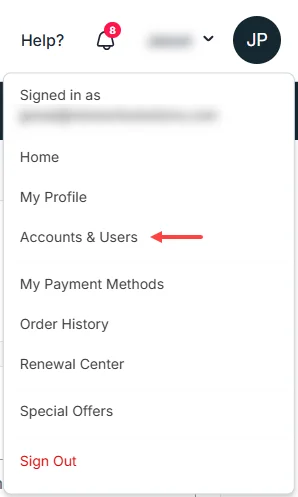
Picture: Network Solutions Help -
Under User Roles & Permissions, select + ADD USER. If you have more than one account, select MANAGE next to the one that holds your domain first.
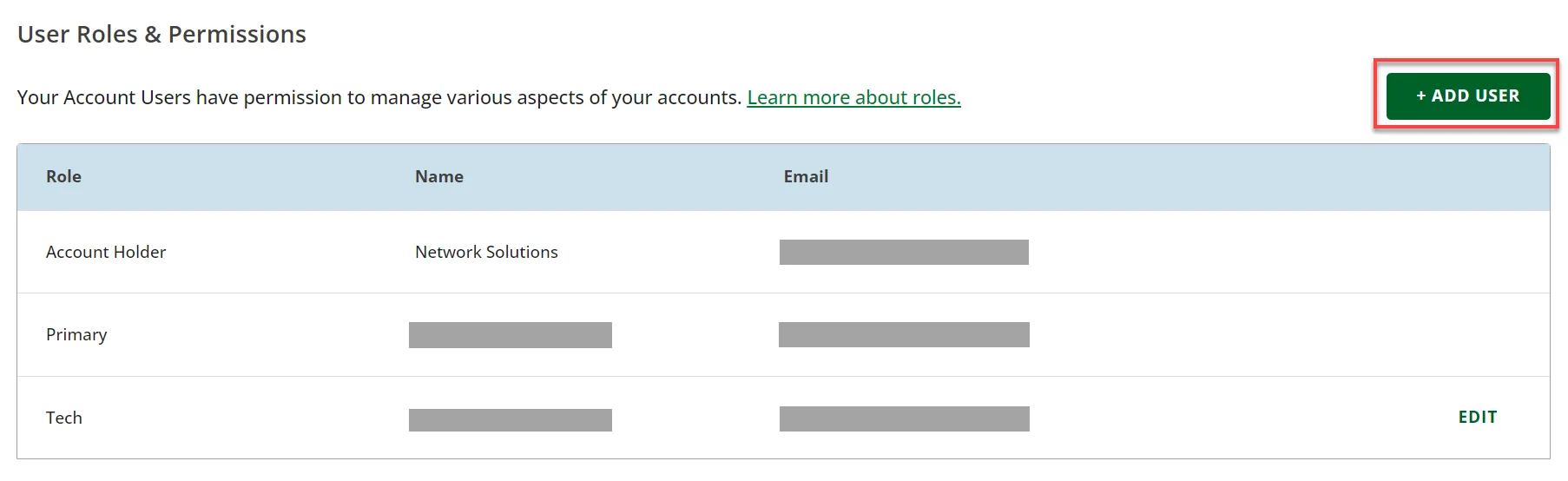
Picture: Network Solutions Help -
Type WILDCARD as the name and
[email protected]as the email, then pick Tech.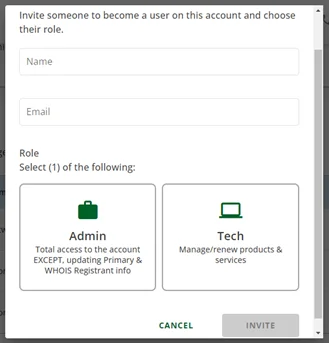
Picture: Network Solutions Help -
Select INVITE. Network Solutions emails the invite to us.
What happens next
- We accept the invite from the email Network Solutions sends us.
- In your WILDCARD portal, select I’ve sent the invite so we know to look for it.
- If we haven’t confirmed within a day, send the invite again from the same page.
Change or remove our access
On the same Accounts & Users (or Users & Roles) page, select EDIT next to our name. You can change the role, or select the delete icon in the top right corner to remove us, any time.
Related
- Give us access to your domain, for every other provider
- Give us access at GoDaddy
- Domain Security, the card this access is for