


















Your business
Give us access at GoDaddy
You stay the owner of your domain. We get a delegate seat that can manage your domain settings, including DNS. A delegate can’t see your payment methods or change your password, and you can remove us at any time.
Invite this address:
[email protected]
Before you start
- The sign-in for the GoDaddy account that holds your domain.
- About two minutes.
Steps
-
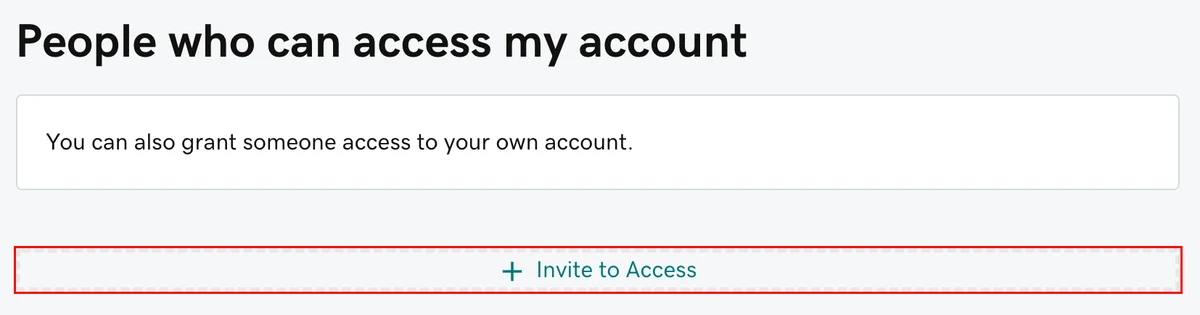
Open your GoDaddy Delegate Access page and sign in if GoDaddy asks. Under People who can access my account, select Invite to Access.
Picture: GoDaddy Help -
Type WILDCARD as the name and
[email protected]as the email.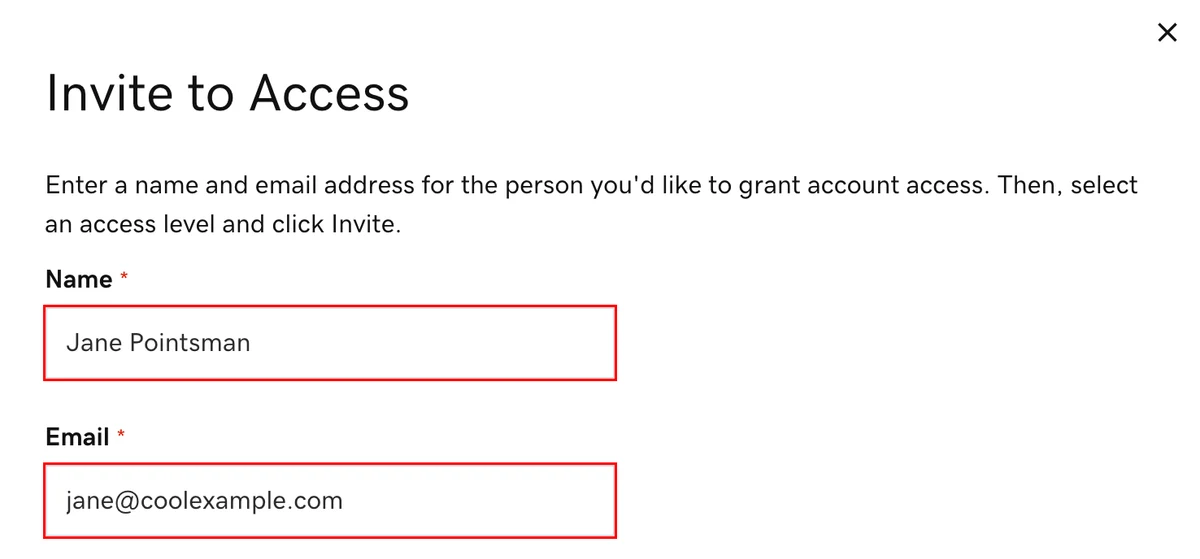
Picture: GoDaddy Help -
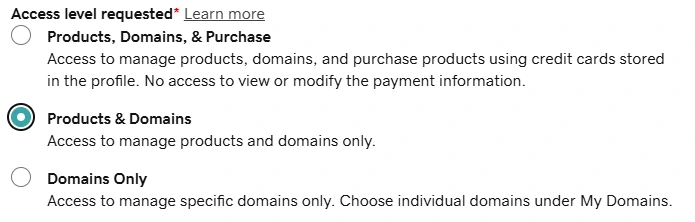
Pick Products & Domains, the middle option.
Picture: GoDaddy -
Select Invite. GoDaddy emails the invite to us.

Picture: GoDaddy Help
What happens next
- We accept the invite and GoDaddy lets you know.
- In your WILDCARD portal, select I’ve sent the invite so we know to look for it.
- An invite that isn’t accepted expires after 48 to 72 hours. If that happens, send it again.
Change or remove our access
You can change a delegate’s access level or remove a delegate from the same Delegate Access page, any time.
Related
- Give us access to your domain, for every other provider
- Give us access at Squarespace
- Domain Security, the card this access is for