


















Your business
Open a shared mailbox in its own tab
Sometimes you only need a quick look at a shared mailbox, like sales@ or support@. Outlook can open it in its own browser tab, apart from your own mail. Close the tab when you are done.
Requirements
| You need | Notes |
|---|---|
| Access to the shared mailbox | We set this up. If you don’t have it yet, email [email protected] with the mailbox address and who should see it. |
| The mailbox address | For example [email protected]. |
| Your own licensed mailbox | You open a shared mailbox from inside your own. A shared mailbox has no sign-in of its own. |
Steps
-
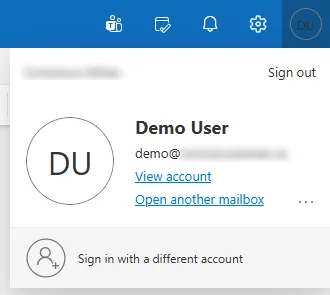
Go to outlook.office.com and sign in with your work account. Select your profile picture or initials at the top right. Select Open another mailbox.
Picture: Outlook on the web -
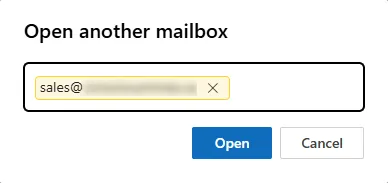
Type the shared mailbox address. Select the address when it appears under the box, then select Open.
Picture: Outlook on the web -
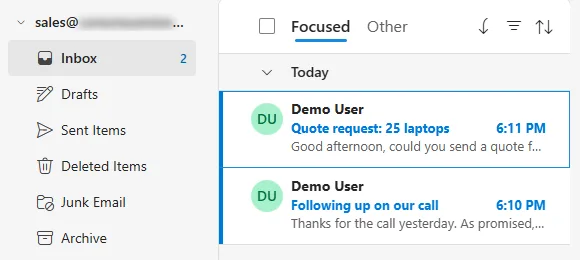
The mailbox opens in a new browser tab, with only its own folders on the left. Your mail stays in the first tab.
Picture: Outlook on the web
What happens next
- Bookmark the new tab to come straight back to the mailbox next time.
- A “Couldn’t add to favorites” message may pop up when the tab opens. Select OK. The mailbox still works.
- If the mailbox does not open, your access may not be set up yet. New access can take up to an hour to work. If it still fails after that, email [email protected].
- Check this mailbox every day? Add it to your folder list instead, so it is always there.