

















Sign in to your portal
Your portal lives at my.teamwildcard.ca. There is no password to remember. You sign in with the Microsoft or Google account you already use at work, or we send a link and a code to your work email.
Use your work email. The address your business runs on, like
[email protected]. A personal address will not find your company.
Steps
-
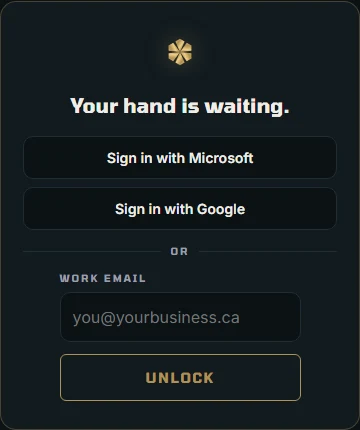
Open my.teamwildcard.ca. If your business runs on Microsoft 365, select Sign in with Microsoft. On Google Workspace, select Sign in with Google. Either one takes you straight in. Done.
Picture: your WILDCARD portal -
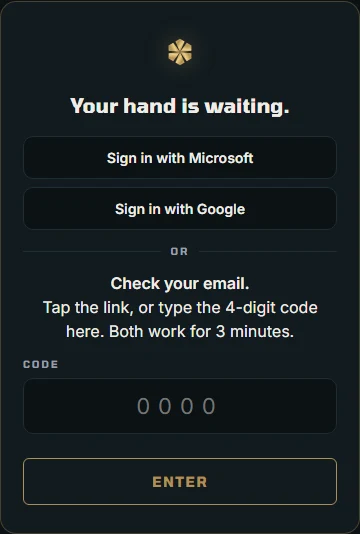
Prefer email? Type your work email in Work email and select Unlock. The screen changes to Check your email.
Picture: your WILDCARD portal -
Open the email from WILDCARD. It has a link and a 4-digit code. Both work for 3 minutes. Type the code in Code and select Enter. The code only works in the browser that asked for it, so type it on the same phone or computer.
-
Or tap the link in the email instead. It opens a page with one button, Continue to WILDCARD. Select it and you are in. The extra button is there so email security scanners cannot use up your link before you do.
What happens next
- The first time in, the portal asks you to finish a short setup. See Your first login.
- Nothing arrived? Check your junk folder, then ask for a new link. The screen looks the same whether or not we know your address, so if a second try also brings nothing, email [email protected] and we will make sure your address is set up.
- “That link has expired or was already used. Ask for a new one.” means the 3 minutes passed, or the link was already clicked. Go back to the sign-in page and start again.
- If a Microsoft or Google sign-in does not complete, the sign-in page tells you to try again or use the email link.