


















Get your DKIM key from DreamHost
DKIM is a signature on your email that proves a message really came from you. This page gets the key from DreamHost and puts it where your DNS lives.
DreamHost already made this key when it set up your email, so there is nothing to generate. If your nameservers are at DreamHost, the key is already live and you are done. If your DNS is somewhere else, like Cloudflare, the key sits unused in DreamHost’s panel until you copy it over. These steps do that.
Before you start
- The sign-in for your DreamHost panel.
- The sign-in for the company that runs your DNS. If your nameservers are at DreamHost, that is DreamHost. If you moved your DNS to Cloudflare, it is Cloudflare.
- About ten minutes.
Steps
-
Sign in to the DreamHost panel and open Manage Websites.
-
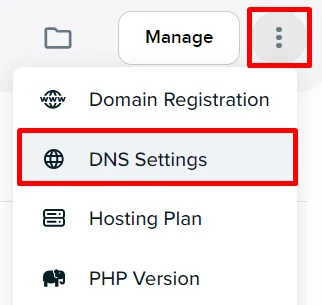
Select the vertical three-dot button for your domain, then select DNS Settings. In list view the button sits to the right of your domain. In grid view it sits under your domain.
Picture: DreamHost Help -
In the list of records, find the TXT record whose name includes
_domainkey, usuallydreamhost._domainkey. Copy its value. The key must have no spaces in it when you paste it somewhere else, or the check will fail. -
Open the DNS records page for your domain at the company that runs your DNS. This example uses Cloudflare: select DNS records, then Add record. Set Type to TXT. For Name, enter
dreamhost._domainkey, the same name you saw at DreamHost. For Content, paste the key. Select Save.
DreamHost says records created elsewhere can take several hours to show up.
Check it worked
Run your free scan at teamwildcard.ca. DKIM should show Pass once the record is live. If it still shows Missing after a few hours, check that the key was pasted in one piece with no spaces.
Related
- SPF, DKIM and DMARC, done yourself, the whole set of three records
- Move your DNS to Cloudflare
- Get your DKIM key from Zoho Mail
- Get your DKIM key from Bluehost