


















Get your DKIM key from Zoho Mail
DKIM is a signature on your email that proves a message really came from you. This page gets the key from Zoho Mail and puts it where your DNS lives.
Before you start
- A Zoho Mail sign-in that is an administrator or super administrator.
- The sign-in for the company that runs your DNS. This example uses Cloudflare.
- About ten minutes.
Steps
-
Sign in to the Zoho Mail Admin Console. Select Domains in the left menu and choose your domain. On the Email Configuration tab, select DKIM.
-
Select Add. Type a selector name (Zoho's example is
zoho) and choose a key length of 1024 or 2048 bits. Select Add again. -
Zoho shows a TXT record next to your new selector. Copy the text in the TXT value field. Copy all of it.
-
Open the DNS records page for your domain at the company that runs your DNS. This example uses Cloudflare: select DNS records, then Add record. Set Type to TXT. For Name, enter your selector followed by
._domainkey, for examplezoho._domainkey. For Content, paste the key. Select Save. -
Go back to the Zoho Admin Console and select Verify next to your selector. When it verifies, Zoho offers to Enable DKIM now or later. Enable it, and Zoho signs all mail from your domain.
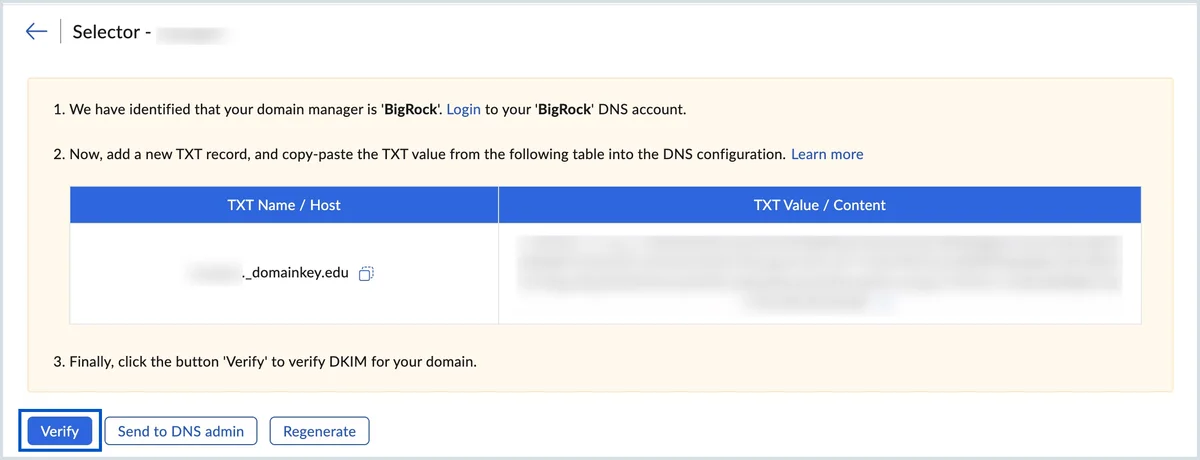
Picture: Zoho Mail Help
If Verify fails, wait a while and try again. Zoho’s page suggests checking the record with a DKIM checker before you select Verify.
Check it worked
Run your free scan at teamwildcard.ca. DKIM should show Pass.
Related
- SPF, DKIM and DMARC, done yourself, the whole set of three records
- Move your DNS to Cloudflare
- Get your DKIM key from DreamHost
- Get your DKIM key from Bluehost